




This is the story of Awesome Popups, a Webflow App from Flowout that turns any element on your canvas into a popup.
Two bad options for every Webflow popup
Someone asks for a popup: a client, your marketing team, your boss. Maybe it's an email signup, a cookie banner or a launch announcement. If you build on Webflow, you've had two ways to deliver it.
Use a third-party popup tool. Paste its script, log into its dashboard and rebuild your design in its editor. The result often lives in an iframe, carries a "powered by" badge and ignores your fonts, classes and breakpoints. Your polished site now has a stranger shouting over it.
Build it by hand. It looks right, but every trigger, every "show once per visitor" rule and every form connection becomes custom code. When marketing wants a new offer next month, someone opens a ticket for a developer.
Either way, someone loses. The designer loses control of the look, and the developer becomes the bottleneck. The marketer can't touch the popup they own. That's true whether those three people share an office or sit on opposite sides of an agency contract.
The idea: your design is the popup
The idea started with Flowout's CEO. He went looking for a way to build popups inside the Webflow Designer and found nothing: no app on the Marketplace, no feature in the Designer. If nobody had built it, Flowout could.
Most popup tools make you design twice: once in Webflow, then again in their editor. Awesome Popups cuts the second step.
You design an element in Webflow like anything else, with your classes, fonts and breakpoints. Open the app's panel, click that element on the canvas, set a trigger and publish. It shows up on your live site as a popup that looks like the rest of your site, because it is the rest of your site.
Everything else happens in the same panel, docked inside the Webflow Designer. You set triggers, targeting and frequency there, and you check results there too. No separate dashboard. No developer hand-off. The only step outside the canvas is a one-time embed script that takes about two minutes.
For in-house teams, that means marketing stops filing a ticket for every new offer. For agencies, it means clients who work in the Designer can run their own popups after launch, without coming back for small changes.
"You design and manage popups where you already build the site. I wish we'd had this sooner. It would have saved us a lot of time, and our clients would have been much happier," says Flowout's CEO.
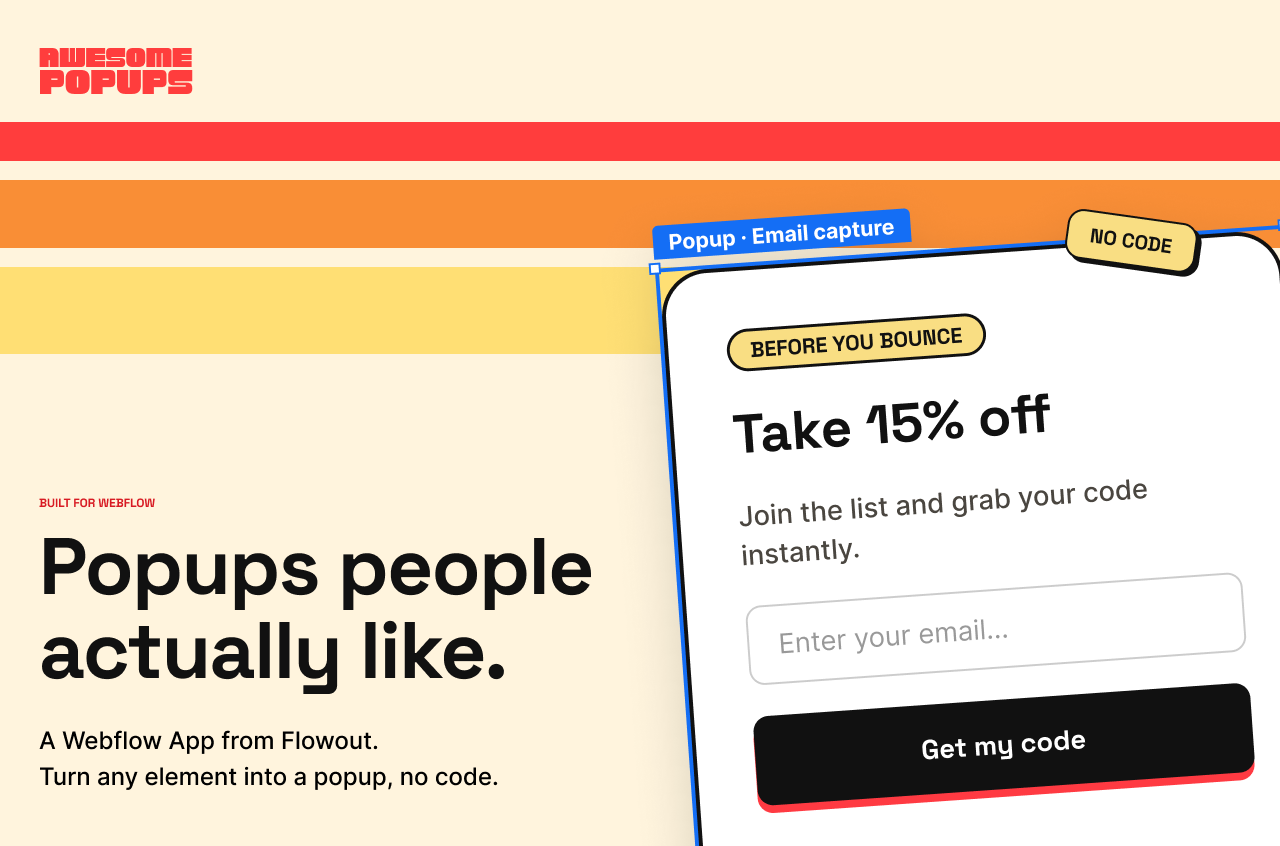
Designing for the button everyone clicks: ×
Designing a popup product comes with an awkward brief: make people like the thing they're trained to close.
Our idea was: "Click any element and it becomes a popup". Sounds simple, but we had to ditch 6 versions to get it right.
"The first version proved the idea worked. It didn't feel effortless yet. Closing that gap is what the next six versions were about," says the developer who built the first version.
After that, the work ran in loops: review the user experience, fix what's broken, test, repeat. Two challenges shaped it: finding and fixing rough spots in the user experience, and meeting the Webflow App Marketplace's requirements.
"Every round of testing showed us something small that got in someone's way. A setting in the wrong place, a step that needed explaining. We fixed it, tested again and found the next one," says the developer who refined and tested the app.
Real control with no code
Once the core worked, the app needed one more thing: control that doesn't require code. Every setting lives in the panel.
- Triggers: show a popup on exit intent, at a scroll depth, after a delay or on click.
- Targeting: choose which pages, visitors and devices see it.
- Scheduling: set date windows and cap how often it appears, so nobody gets nagged.
- Multi-step flows: chain steps to ask, qualify and convert.
- Appearance: pick the position, animations, overlay and timing.
- Integrations: send signups to your email tool, CRM, Zapier, a webhook or Webflow forms.
We also built a template gallery with four categories: legal (cookie consent), marketing, conversion and engagement. A custom popup takes two steps. A template takes four.
Each popup also tracks its own impressions, CTA clicks, conversion rate and dismiss rate. Watch the dismiss rate. It shows how often people close the popup, which is the quickest way to tell whether it deserves its spot.
One subscription for every site you build
Awesome Popups starts with a 14-day free trial, no credit card needed. After that, it's $9 a month or $90 a year, and one subscription covers every Webflow site you build.
Running your own sites? You get unlimited popups on every site for one price, so launching the next site doesn't change the bill.
Building sites for clients? One subscription covers your whole client list. You pay one bill, not one per project.
"We're an agency ourselves. We know how fast per-site pricing adds up across client projects, so we priced it the way we'd want to pay," says Flowout's CEO.
Let's make popups cool
Popups aren't going away, but they can stop looking like strangers on your site.
Want to see the difference on your own site? Install Awesome Popups, click an element and publish your first popup.
Frequently asked questions
How do I install it?
Install it from the Webflow App Marketplace, then open it from the Apps panel in the Designer. The panel shows you the one-time embed script to add to your site, and from there everything is visual.
Will my popups actually match my brand?
Yes, and that is the whole point. A popup is just a Webflow element you already styled, so it keeps your classes, fonts and breakpoints. No iframe, no "powered by" badge, no off-brand template. It is your design, not a plugin's.
What can trigger a popup, and who sees it?
Trigger on exit-intent, scroll depth, a time delay, or a click. Then target the right pages, visitors and devices, schedule date windows, and cap how often it shows, so you never nag the same person twice.